

Have you ever clicked Print, noticed a checkbox labeled Collate, and wondered what it actually does?
Many people see the collate option in printer settings yet never use it because they are unsure of its purpose. While it may seem like a small setting, it can save significant time when printing reports, presentations, manuals, contracts, or any multi-page document.
Understanding what collate means when printing helps you organize printed copies correctly and avoid sorting stacks of paper by hand. Whether you use a home printer, office copier, PDF viewer, or word processor, knowing how document collation works can make printing much more efficient.
This guide explains collated printing, uncollated printing, real-world examples, printer settings, troubleshooting tips, and everything else you need to know.
What Does Collate Mean When Printing?
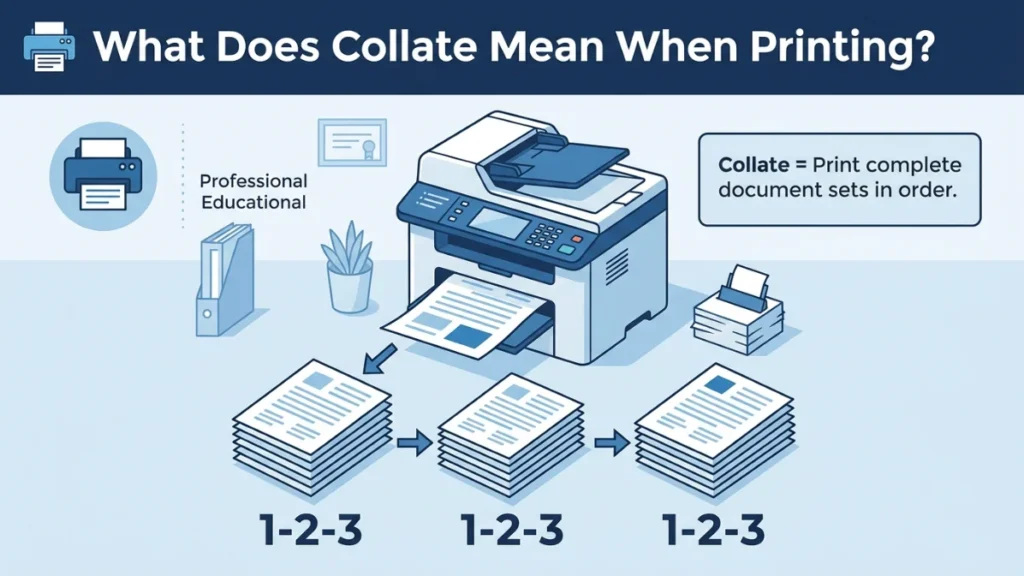
In printing, collate means arranging pages in the correct sequential order when printing multiple copies of a multi-page document.
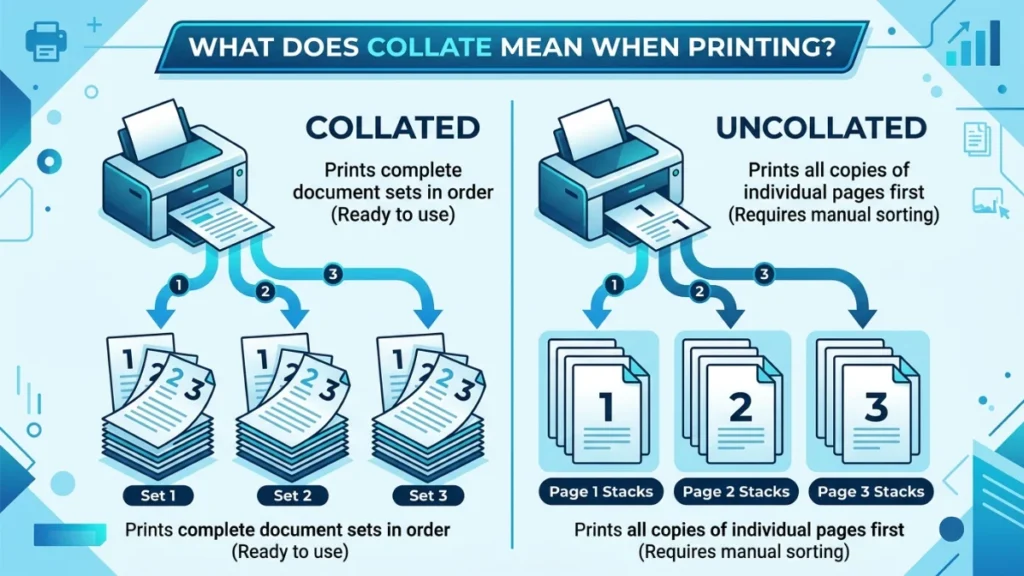
When the collate feature is enabled, the printer prints complete document sets before starting the next copy.
For example, imagine you have a three-page document:
- Page 1
- Page 2
- Page 3
If you print three copies with Collate ON, the printer produces:
- Copy 1: 1, 2, 3
- Copy 2: 1, 2, 3
- Copy 3: 1, 2, 3
Each copy comes out as a complete set.
Without collation, the printer groups identical pages together instead.
Why Printers Include a Collate Feature
Printers include this function because people often print multiple copies of documents that need to remain in order.
Examples include:
- Business reports
- Employee handbooks
- School assignments
- Training materials
- Meeting agendas
- Legal documents
Instead of manually organizing every page, the printer handles the arrangement automatically.
Think of collating as creating finished document sets rather than producing piles of individual pages.
What Is Collated Printing?
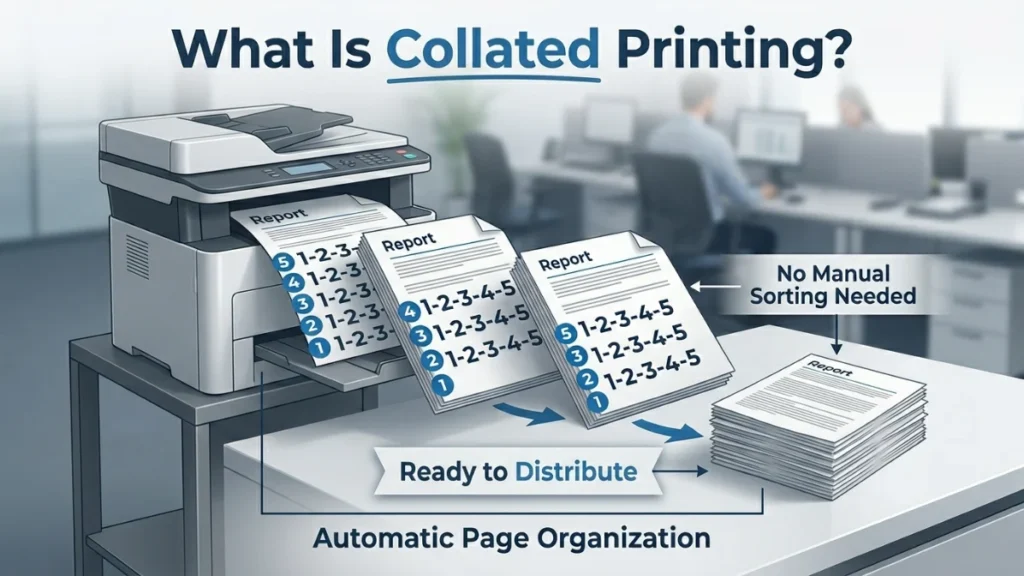
Collated printing refers to the process of printing complete document copies in sequence.
Rather than printing all Page 1 sheets first and all Page 2 sheets afterward, the printer creates finished document packages.
Example of Collated Printing
Suppose you have a five-page report and need three copies.
With collation enabled, the output will be:
| Copy | Pages |
|---|---|
| Copy 1 | 1, 2, 3, 4, 5 |
| Copy 2 | 1, 2, 3, 4, 5 |
| Copy 3 | 1, 2, 3, 4, 5 |
Each report is ready to distribute immediately.
Benefits of Collated Printing
Collated printing offers several advantages:
- Saves time
- Reduces manual sorting
- Improves document organization
- Prevents page mix-ups
- Simplifies distribution
- Increases office productivity
These benefits become especially noticeable when printing large documents with many pages.
Understanding Collated Copies
A collated copy is a complete document set printed in the correct order.
For example, if a training manual contains 50 pages and you print 20 copies using the collate feature, each manual comes out as a finished package containing pages 1 through 50.
Without collation, employees would need to sort hundreds or even thousands of pages manually.
Common Examples of Collated Documents
Organizations frequently use collated copies for:
- Annual reports
- Employee manuals
- University course materials
- Product catalogs
- Instruction booklets
- Conference packets
- Business proposals
Any document requiring sequential reading benefits from collation.
What Does Uncollated Mean in Printing?
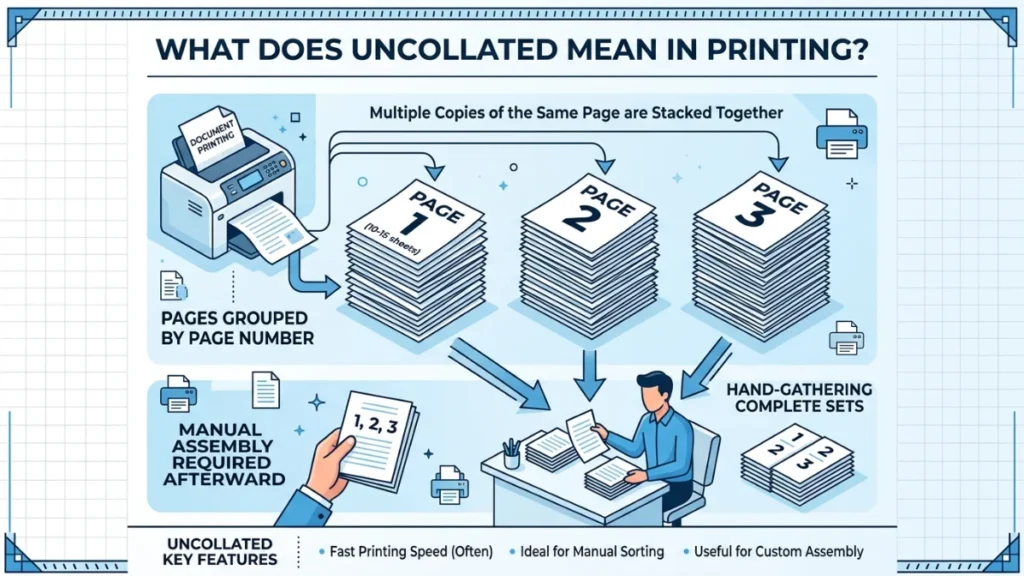
Uncollated printing means the printer groups identical pages together rather than producing complete document sets.
The printer prints all copies of Page 1 first, then all copies of Page 2, and so on.
Example of Uncollated Printing
Using the same three-page document with three copies:
The output becomes:
- Page 1
- Page 1
- Page 1
Then:
- Page 2
- Page 2
- Page 2
Then:
- Page 3
- Page 3
- Page 3
Someone must manually assemble the document sets afterward.
Why Uncollated Printing Exists
Although many users prefer collated printing, uncollated output serves several practical purposes.
It works well when:
- Different departments assemble documents
- Pages require separate processing
- Inserts must be added manually
- Large commercial print jobs are involved
- Bulk sorting is required
For some production environments, grouped pages are actually more efficient.
Collated vs Uncollated Printing
The biggest difference lies in page order.
Quick Comparison
| Feature | Collated | Uncollated |
|---|---|---|
| Document Sets | Complete | Not Complete |
| Manual Sorting | No | Yes |
| Page Order | Sequential | Grouped |
| Time Savings | High | Low |
| Ideal for Reports | Yes | No |
| Ideal for Bulk Processing | Sometimes | Yes |
Visual Example
Imagine printing three copies of a four-page document.
Collated
- 1, 2, 3, 4
- 1, 2, 3, 4
- 1, 2, 3, 4
Uncollated
- 1, 1, 1
- 2, 2, 2
- 3, 3, 3
- 4, 4, 4
The difference becomes dramatic as page counts increase.
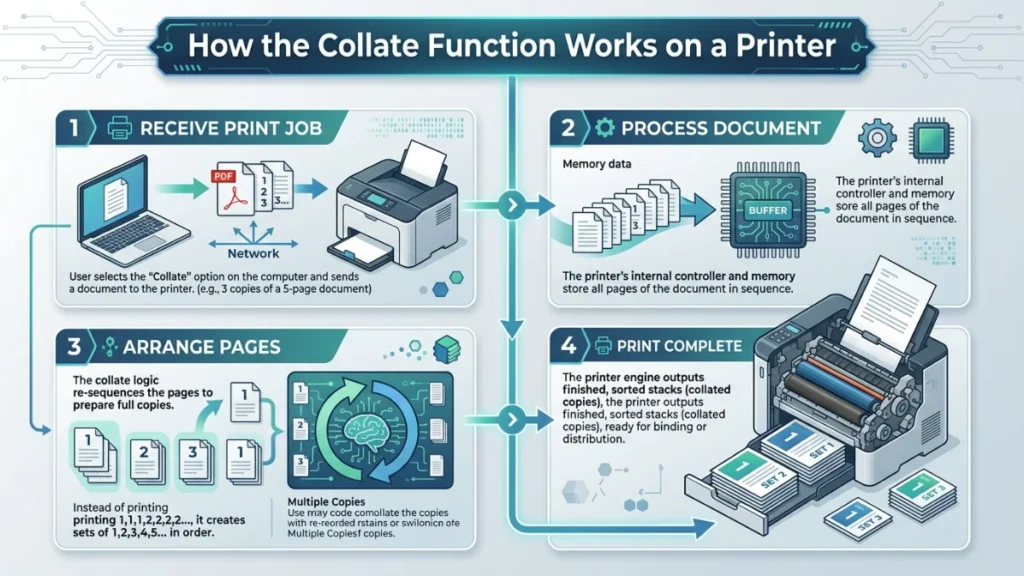
How Does the Collate Function Work on a Printer?
Modern printers use software and internal memory to manage page sequencing.
When you choose collate, the printer temporarily stores document data and controls the order in which pages are printed.
Behind the Scenes
The process generally works like this:
- Receive print job
- Analyze page count
- Determine requested copies
- Arrange output order
- Print complete sets sequentially
Advanced office printers often include dedicated processors that handle large collation jobs efficiently.
Printer Memory Matters
Large print jobs require memory.
For example:
- 5-page document = minimal memory
- 500-page document = significantly more processing
Enterprise printers often include more RAM specifically for complex print tasks.
Where Is the Collate Option Found?
Most printers place the collate feature inside the print settings window.
On Windows
Typically:
- Open document
- Click Print
- Choose printer
- Select number of copies
- Locate Collate checkbox
- Enable or disable as needed
On Mac
Generally:
- Open Print dialog
- Select printer
- Expand print settings
- Find Collated option
- Check or uncheck the box
In PDF Software
Many PDF applications provide:
- Copies field
- Collate checkbox
- Print preview
Always review the preview before starting a large print job.
How to Collate Documents for Printing
The process is simple.
Basic Steps
- Open document
- Select Print
- Enter number of copies
- Enable Collate
- Confirm settings
- Start printing
Most modern printers handle the rest automatically.
Before Printing Large Jobs
Check:
- Paper supply
- Ink or toner levels
- Print orientation
- Page range
- Collate setting
Spending a few seconds reviewing settings can prevent costly mistakes.
Microsoft Word Collate Printing
Microsoft Word includes a built-in collate option.
When printing multiple copies, Word displays a collate control directly inside the print panel.
Example
Suppose you print:
- 10-page report
- 5 copies
With collate enabled, Word sends instructions that create:
- Report 1
- Report 2
- Report 3
- Report 4
- Report 5
Each report contains all ten pages in order.
This makes Word one of the easiest applications for collated printing.
PDF Printing Collate Option
PDF documents frequently require multiple copies for meetings, contracts, and presentations.
Most PDF readers support collation.
Common Uses
- Contracts
- Invoices
- Educational materials
- User guides
- Financial reports
Before printing, verify:
- Collate checkbox status
- Page scaling
- Duplex settings
- Paper size
Small mistakes can affect hundreds of printed pages.
Common Collate Printing Examples
Understanding real-world examples makes collation easier to visualize.
Example: School Assignment
Document:
- 8 pages
- 30 copies
Collated output:
- Student packet 1
- Student packet 2
- Student packet 3
And so forth.
The teacher can distribute packets immediately.
Example: Business Presentation
Document:
- 20 pages
- 15 attendees
Collated printing creates:
- 15 complete presentation packets
No manual assembly required.
Example: Employee Handbook
Document:
- 75 pages
- 50 employees
Without collation:
- 3,750 pages require sorting
With collation:
- 50 complete handbooks arrive ready for distribution.
The time savings are substantial.
When Should You Use Collated Printing?
Collated printing is ideal whenever readers need complete documents.
Best Situations
- Reports
- Contracts
- Proposals
- School materials
- Training guides
- Instruction manuals
- Meeting packets
- Booklets
If someone will read pages in sequence, collating usually makes sense.
Benefits in Offices
Office workers frequently print:
- Project reports
- Sales proposals
- Client presentations
Collation eliminates the need for manual organization and reduces human error.
When Should You Use Uncollated Printing?
Although collated printing receives most attention, uncollated printing remains useful.
Good Uses for Uncollated Output
- Mass production printing
- Commercial print shops
- Document assembly lines
- Separate page processing
- Insert printing
For example, a marketing team may print all cover pages first and then combine them with other materials later.
In that scenario, uncollated output works better.
Does Collating Affect Printing Speed?
Sometimes.
The impact depends on:
- Printer model
- Page count
- Available memory
- Print complexity
Small Jobs
For short documents, the difference is usually negligible.
Large Jobs
For large reports or manuals, the printer may spend extra time organizing pages.
Even so, the time saved from avoiding manual sorting often outweighs any slight delay.
Realistic Expectation
Most modern office printers handle collation efficiently and users rarely notice a significant slowdown.
Does Collating Use More Ink?
No.
Collation changes page order only.
It does not affect:
- Ink consumption
- Toner consumption
- Print quality
- Image resolution
A collated and uncollated job containing the same pages uses essentially the same amount of ink or toner.
Does Collating Affect Print Quality?
No.
Print quality depends on:
- Printer hardware
- Print settings
- Ink or toner condition
- Paper quality
Collation simply controls document arrangement.
The printed image remains identical.
Collate and Staple Printing Explained
Many business printers combine collation with automatic stapling.
This feature creates fully assembled document packets.
How It Works
The printer:
- Prints pages in order
- Creates complete sets
- Staples each set automatically
The result is a professional package ready for distribution.
Common Uses
- Meeting handouts
- Training manuals
- Reports
- Proposals
- Presentation packets
Large organizations frequently rely on this capability.
Common Printing Mistakes Related to Collation
Even experienced users make mistakes.
Forgetting to Enable Collate
This is the most common error.
Users print multiple copies only to discover all pages are grouped together.
Ignoring Print Preview
Preview windows often reveal collation issues before printing starts.
Confusing Copies With Collation
Increasing the number of copies does not automatically enable collation.
The settings are separate.
Using Incorrect Printer Drivers
Outdated drivers sometimes cause collation problems.
Keeping drivers updated can prevent many printing issues.
Troubleshooting Collate Problems
Sometimes pages do not print correctly despite enabling collation.
Printer Ignores Collate Setting
Possible causes:
- Outdated driver
- Printer firmware issue
- Application conflict
Pages Print Out of Order
Check:
- Page range settings
- Reverse printing options
- PDF settings
Network Printer Issues
Shared office printers occasionally override user settings.
Administrators may need to adjust printer preferences.
Memory Limitations
Very large print jobs can exceed printer memory.
Breaking the document into smaller sections often solves the problem.
Frequently Asked Questions
What does collate mean when printing multiple copies?
It means printing complete document sets in page order before starting the next copy.
What is collated printing?
Collated printing automatically organizes pages sequentially for each document copy.
What are collated copies?
Collated copies are complete documents with pages arranged correctly from beginning to end.
What does uncollated mean in printing?
Uncollated printing groups identical pages together rather than producing complete document sets.
Should collate be on or off?
Turn it on when you need finished document copies. Turn it off when grouped pages work better for your workflow.
Does every printer support collation?
Most modern printers support basic collation. Advanced models often offer additional finishing features.
Can I use collate and staple together?
Yes. Many office printers support both functions simultaneously.
Does collation increase printing costs?
No. It changes page order only and does not increase ink or toner usage.
Final Thoughts
If you’ve ever wondered what does collate mean when printing, the answer is straightforward. Collation organizes pages into complete document sets when printing multiple copies.
With collated printing, the printer outputs finished copies in proper sequence. With uncollated printing, pages are grouped together and require manual assembly later.
For reports, presentations, manuals, contracts, and educational materials, collated printing saves time, improves organization, and reduces errors. Understanding the collate option in printer settings allows you to print documents more efficiently and avoid the frustration of sorting large stacks of paper by hand.
The next time you see the Collate checkbox, you’ll know exactly when to turn it on and when to leave it off.