
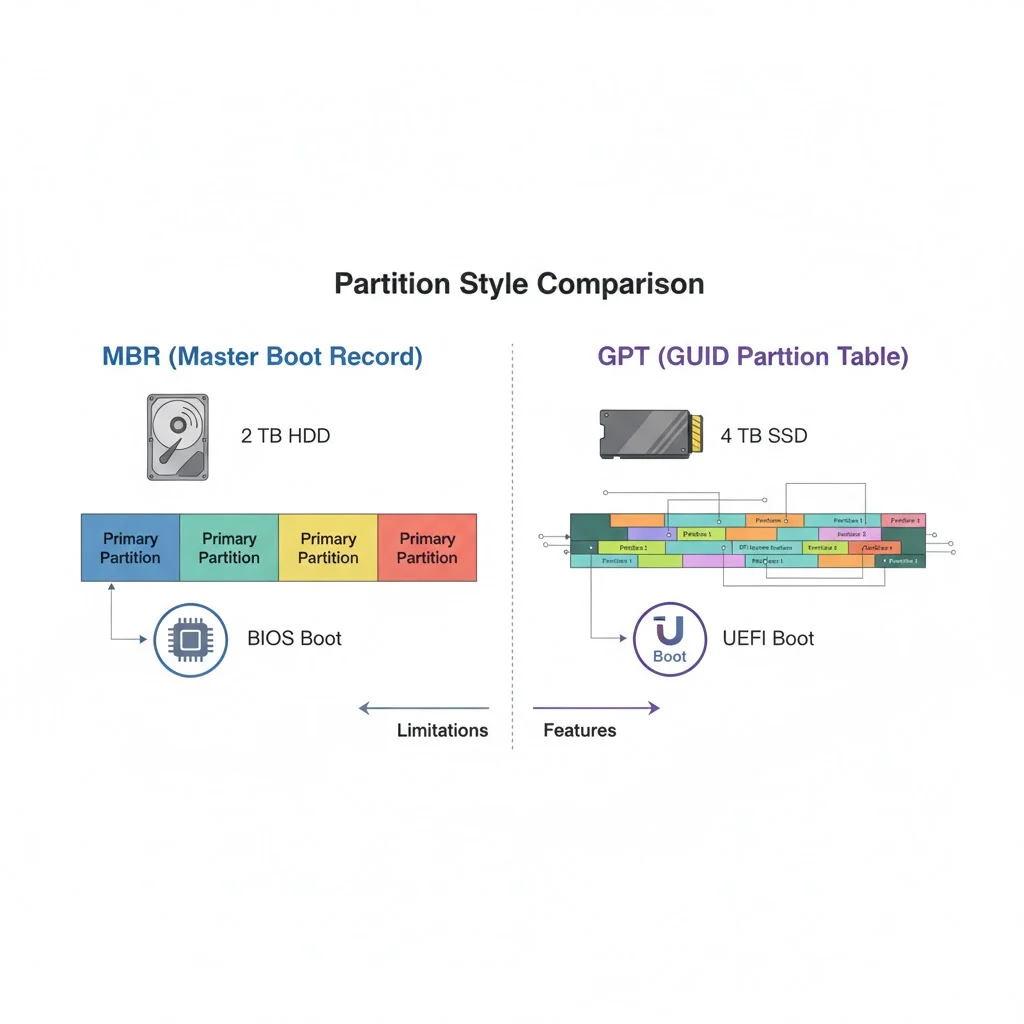

MBR (Master Boot Record) and GPT (GUID Partition Table) are two partition styles for hard drives and SSDs. MBR supports up to 2 TB drives and four primary partitions, while GPT supports larger drives, more partitions, and modern UEFI systems. Use MBR for legacy systems and GPT for modern computers with UEFI.
Choosing between MBR or GPT is a common challenge when setting up a hard drive or SSD. Many users get confused because both are partition styles used for organizing storage devices. Picking the wrong option can lead to limitations, errors, or even data loss.
People often search for “MBR or GPT” when installing Windows, formatting drives, or building new PCs. Understanding the difference is critical for ensuring compatibility, performance, and future-proofing storage.
In this guide, you will learn the technical differences between MBR and GPT, their history, advantages, disadvantages, real-world examples, common mistakes, exercises, and professional tips for choosing the right partition style. By the end, you will confidently decide whether to use MBR or GPT for any system.
Quick Answer
MBR is an older partition style suitable for legacy BIOS systems.
GPT is a modern partition style that works with UEFI and supports larger drives and more partitions.
Simple Examples
- For a 1 TB hard drive on an older PC → use MBR
- For a 4 TB SSD on a modern UEFI system → use GPT
Easy Tip
Use MBR if your system requires BIOS boot. Use GPT for UEFI boot or drives larger than 2 TB.
What is MBR?
MBR (Master Boot Record) was introduced in 1983 and has been used in PCs for decades. It is stored in the first sector of a drive and contains:
- Bootloader code
- Partition table for up to four primary partitions
- Disk signature for identifying the drive
Advantages of MBR
- Compatible with almost all older systems
- Simple structure and widely supported
- Works with drives up to 2 TB
Disadvantages of MBR
- Limited to four primary partitions (unless using extended partitions)
- Not suitable for modern drives larger than 2 TB
- Does not support UEFI boot
- Installing Windows XP or Windows 7 on BIOS systems
- Old servers with drives smaller than 2 TB
- Legacy laptops without UEFI support
What is GPT?
GPT (GUID Partition Table) is a modern standard introduced with EFI/UEFI systems. It stores partition data across the disk, making it more robust and flexible.
Advantages of GPT
- Supports drives larger than 2 TB
- Supports up to 128 partitions in Windows
- Redundant partition table for data protection
- Compatible with UEFI boot systems
Disadvantages of GPT
- Not supported by older BIOS-only systems
- Slightly more complex structure
- Requires 64-bit OS for booting from GPT drives
- Installing Windows 10, 11, or Linux on UEFI systems
- Large SSDs or hard drives exceeding 2 TB
- Modern servers and workstations
Key Differences Between MBR and GPT
| Feature | MBR | GPT |
|---|---|---|
| Introduced | 1983 | 1990s with UEFI |
| Boot Type | BIOS | UEFI |
| Maximum Partitions | 4 primary | 128 primary |
| Maximum Disk Size | 2 TB | 9.4 ZB (practically unlimited) |
| Redundancy | None | Redundant table for safety |
| OS Compatibility | Older systems | Modern systems |
| Disk Signature | Single | GUID for each partition |
Why People Get Confused Between MBR or GPT
- Same Purpose: Both are partition styles, so beginners often think they are interchangeable.
- Terminology: MBR sounds technical and GPT even more so, confusing users.
- OS Requirements: Windows, Linux, and macOS have different preferences, adding complexity.
- Drive Size: Many are unaware of the 2 TB MBR limitation.
- Boot Mode: BIOS vs UEFI boot requirements are not always clear to users.
Real-World Usage Examples
Personal Computers
- 500 GB HDD on Windows 7 → MBR
- 2 TB SSD on Windows 10 UEFI → GPT
Servers
- Legacy server with BIOS → MBR
- Modern data center storage with large drives → GPT
External Drives
- Small USB flash drive → MBR for compatibility
- 4 TB portable SSD → GPT for storage efficiency
British and American Usage
There is no regional difference. Both MBR and GPT standards are universal across the globe. MBR and GPT are technical terms and are used consistently in the U.S., U.K., Europe, and Asia.
Choosing Between MBR or GPT
Check Your System Boot Mode
- BIOS → MBR
- UEFI → GPT
Check Drive Size
- ≤ 2 TB → MBR or GPT
- 2 TB → GPT
Consider Number of Partitions
- Need ≤ 4 partitions → MBR works
- Need > 4 partitions → GPT
OS Compatibility
- Older OS → MBR
- Modern OS → GPT
Common Mistakes With MBR and GPT
- Using MBR on a 4 TB drive → cannot use full storage
- Installing Windows on GPT drive with BIOS boot → system will not boot
- Ignoring partition table type when cloning or imaging drives
- Confusing UEFI and BIOS requirements
Correct Approach
- Always check system boot type before formatting
- Use GPT for modern large drives
- Use MBR for older drives and legacy systems
Exercises With Answers
Exercise 1: Identify the Correct Partition Style
- Installing Windows XP on a 1 TB HDD → MBR
- Installing Windows 11 on a 2 TB SSD with UEFI → GPT
- External 500 GB USB drive → MBR
- 4 TB workstation storage → GPT
Exercise 2: True or False
- MBR supports up to 128 partitions → False
- GPT is compatible with BIOS-only systems → False
- GPT allows drives larger than 2 TB → True
- MBR contains bootloader code → True
Advanced Tips
- For dual-booting Windows and Linux, GPT with UEFI is recommended.
- Use GPT for NVMe SSDs to take advantage of modern boot features.
- Convert MBR to GPT without data loss using built-in OS tools.
- Always back up drives before changing partition styles.
Related Storage Concepts
- UEFI vs BIOS: Determines which partition style to use.
- Primary vs Extended Partitions: MBR allows one extended partition to bypass the 4-partition limit.
- Bootloader and EFI Partition: GPT creates an EFI System Partition for booting.
- Disk Alignment: GPT ensures better alignment for SSD performance.
FAQs
What is the difference between MBR and GPT?
MBR is an older partition style for BIOS systems and smaller drives. GPT is modern, supports UEFI, larger drives, and more partitions.
Which should I use for a new 4 TB SSD?
Use GPT because MBR cannot fully utilize drives larger than 2 TB.
Can I boot Windows from a GPT drive on BIOS?
No, BIOS requires MBR. GPT requires UEFI to boot.
Is GPT compatible with Linux and macOS?
Yes, GPT is fully supported on modern Linux distributions and macOS.
Can I convert MBR to GPT without losing data?
Yes, some OS tools allow conversion, but always back up data first.
Why is MBR still used if GPT is better?
MBR is simple and compatible with older systems, small drives, and legacy OSes.
Does GPT improve performance?
GPT itself does not improve speed, but it allows better partitioning and modern boot features which can indirectly help performance.
What happens if I use the wrong partition style?
The system may not boot, or some storage may be unusable.
How many partitions can I create with MBR?
Up to 4 primary partitions or 3 primary + 1 extended partition.
How many partitions can I create with GPT?
Windows allows up to 128 partitions on a GPT disk.
Conclusion
Choosing between MBR or GPT depends on your system, drive size, and boot requirements. MBR works for legacy BIOS systems and smaller drives, while GPT is ideal for modern systems, UEFI boot, and drives larger than 2 TB.
Avoid common mistakes by checking your OS, boot mode, and drive size before formatting. Understanding MBR and GPT ensures compatibility, full storage utilization, and a smooth computing experience. Back up your data, plan your partitions, and choose wisely to prevent errors and future problems.
With proper knowledge, exercises, and examples, anyone can confidently decide between MBR or GPT and set up their drives efficiently.


